
Dictation
In addition to supporting standard Siri dictation using the microphone icon on the iOS keyboard or using standard system dictation on macOS, Drafts has a custom dictation interface which enables additional features, including:
- Easier access: Dictation can be triggered in more different ways (details below).
- More control: Define custom dictionaries to phrases and terms to improve recognition, enable/disable options like automatic punctuation and emoji recognition.
- Language and locale selection: Dictation can be used with any language supported by Siri dictation and languages/locales changed on-the-fly - even within a single dictation session.
The dictation interface uses Apple’s system speech APIs, and, in most cases, can operate completely locally, offline on your device.
Apple Watch
This article is focused on dictation on iOS and Mac. See Apple Watch article for details on using dictation on the Apple Watch.
Table of Contents
- Accessing Dictation
- Using Dictation
- Legacy Dictation
- Using Dictation as a Service
- Troubleshooting Dictation
Accessing Dictation
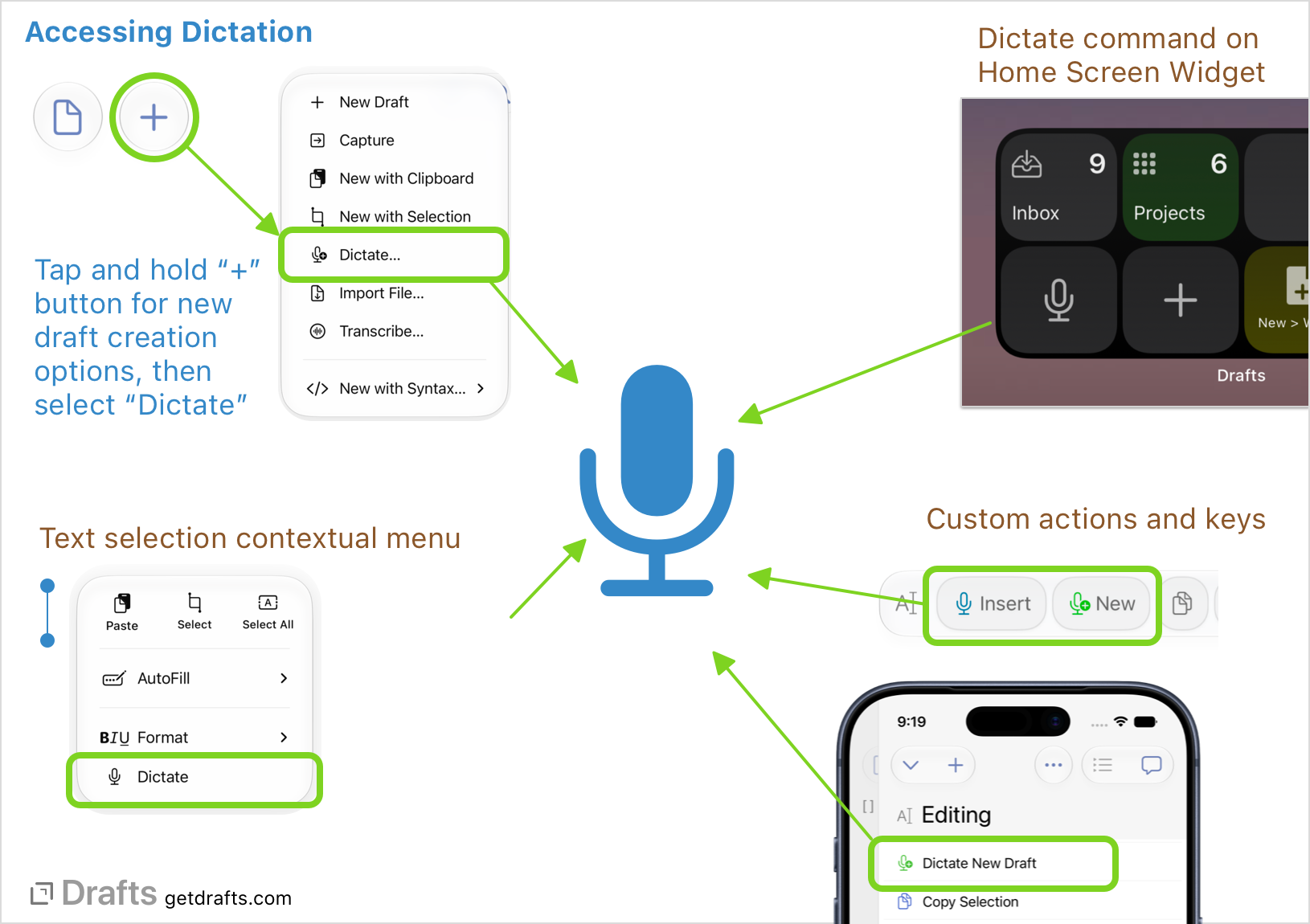
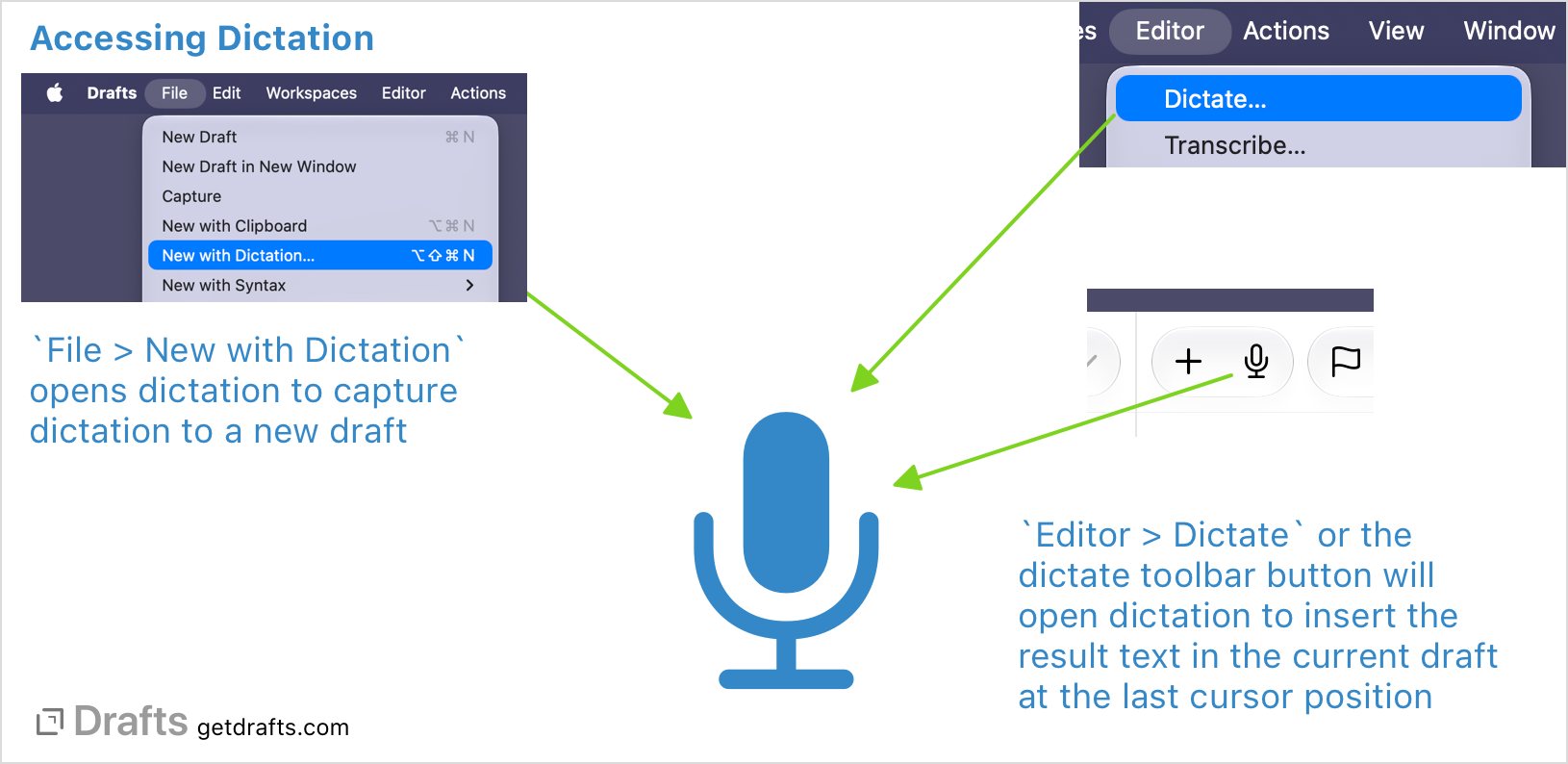
As always, if dictation is enabled and supported on the standard system dictation can be used with the keyboard microphone button (iOS) or associated hot key (macOS) as you would in any app. Also, Drafts custom dictation interface can be opened via several methods:
- iOS
- Tap and hold new draft (“+”) button: This opens the new draft options selector. Select “Dictate” to start a new draft via dictation.
- “Dictate” option in text selection menu: Place your cursor in the editor, and hold as if making a text selection. The “Dictate” option will open Drafts custom dictation interface and insert the results at the cursor location.
- Use the Home Screen Widget: The Drafts Widget offers a command that launches the app directly to dictation of a new draft.
- macOS
File > New with Dictationmenu command opens dictation to capture to a new draft.Editor > Dictatemenu command opens dictation to insert the dictation result in the current draft.Dictatetoolbar button opens dictation to insert the dictation result in the current draft.
- Custom Actions and Keyboard Keys: Dictation can also be opened and used via action, scripts, and URL schemes. Actions to dictate new drafts, or insert text ship in the default “Basic” action group - but can also be installed from the directory:
Using Dictation
OS 27 and Above
This section covers the modern dictation interface introduced in OS 27. If you are using an older version of iOS or macOS, see the “Legacy Dictation” section below.
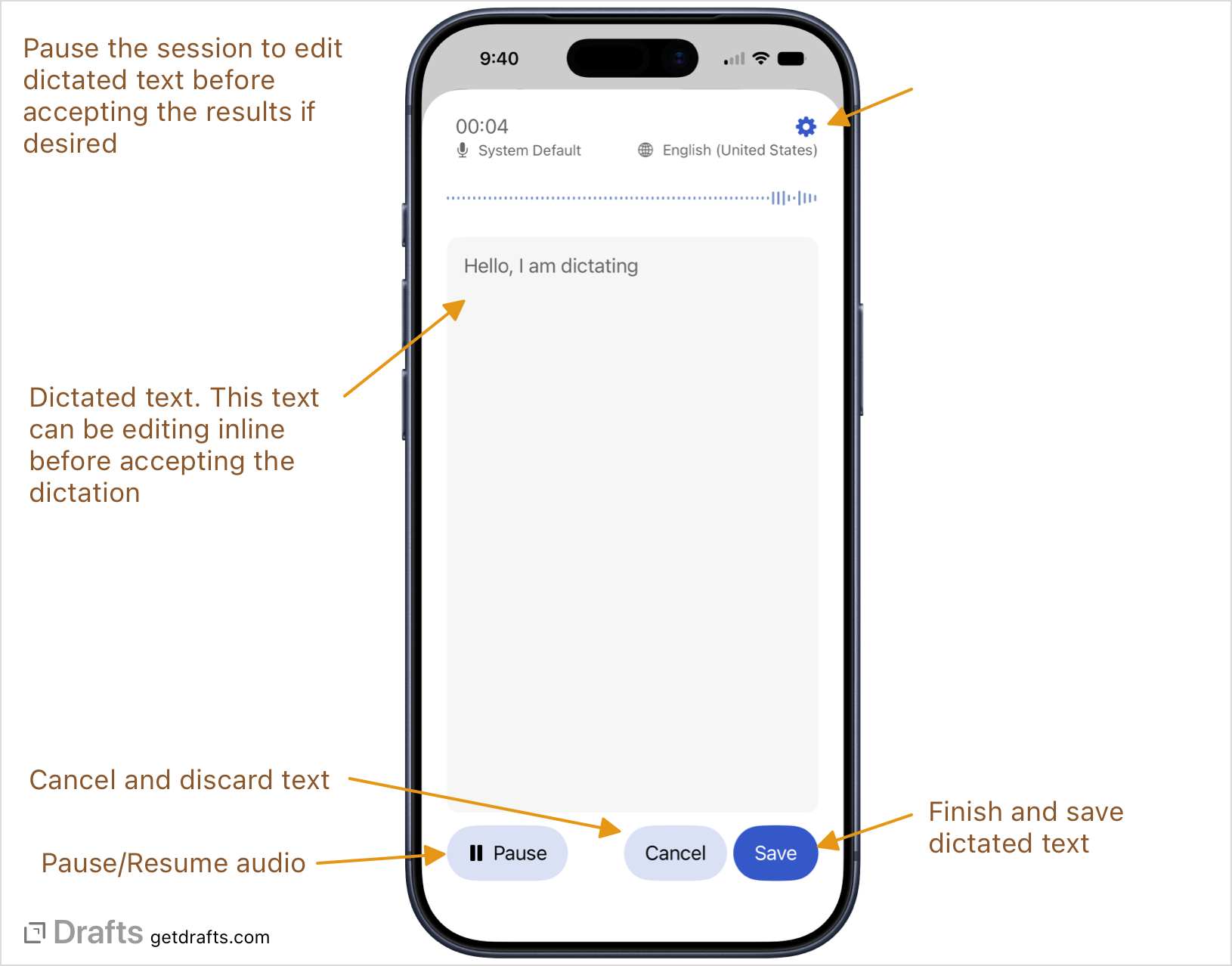
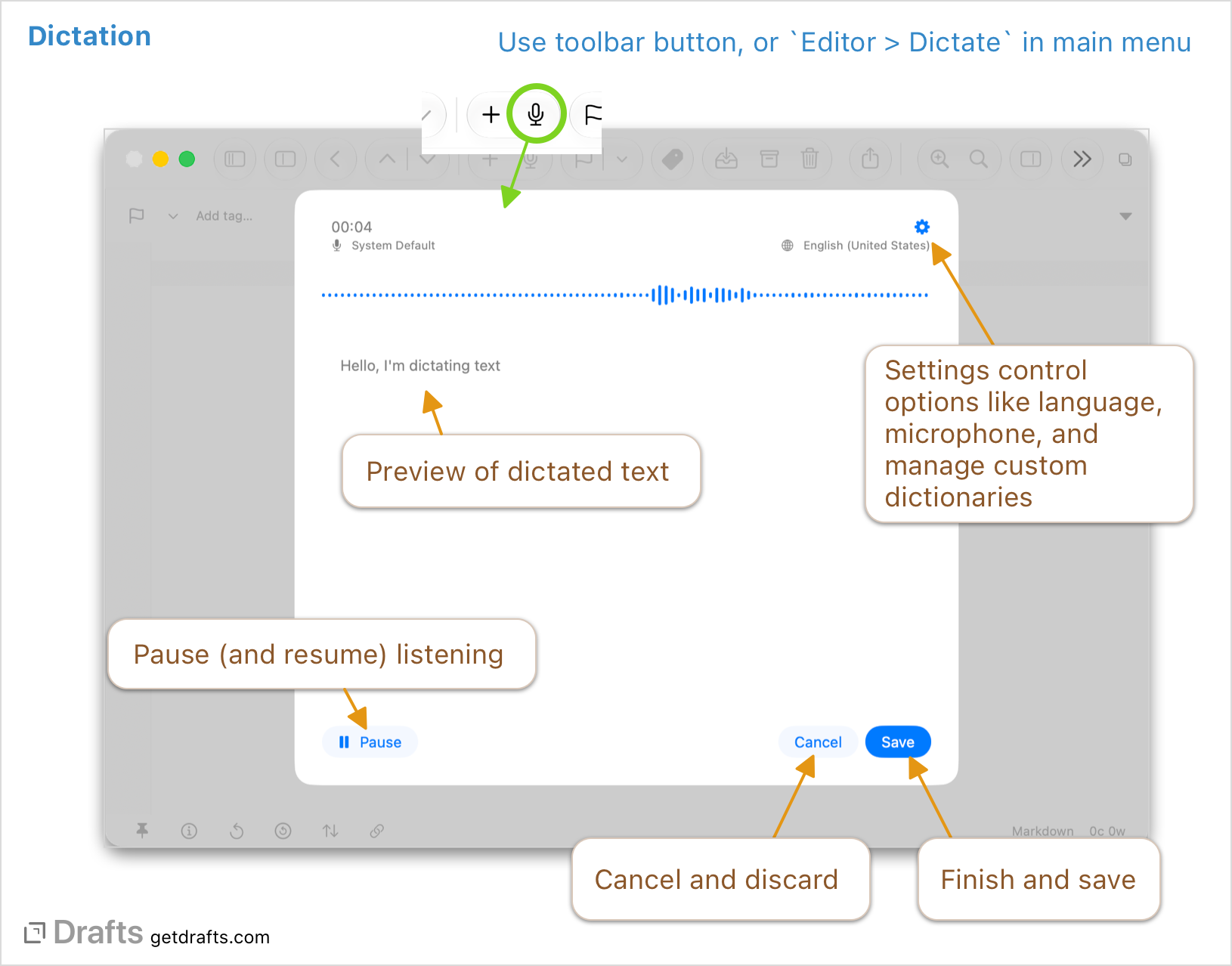
Once open, the dictation interface will immediately start listening. Just speak and a preview of the dictation results will be displayed at you speak. Once complete, tap the “Save” to accept the results.
Dictation may be paused and resumed, and the text edited for minor corrections directly in the dictation interface. Also note that dictation can continue while Drafts is in the background. On iOS, a Live Activity will be visible in the dynamic island and Lock Screen to remind you dictation is in process.
The current selected locale/language and microphone in use are displayed.
To learn about voice commands available to create new paragraphs, etc., any guide to Siri dictation commands is applicable.
Dictation Settings
The dictation interface contains a variety of settings to tune the dictation behavior:
- Recording:
- Locale: Select the language/locale dictation should assume you will be speaking. The available locales may vary by your device, operating system version, etc.
- Microphone: In most cases, it is optimal to leave this at the default “System Default” option, but, in some cases, you may which to specifically request dictation listen on another available microphone on your device.
- Silence timeout: If you select a silence timeout, the dictation interface will automatically close, accepting the text dictated to that point, if no new text is detected for a certain amount of time. This can be handy for hands-free use, like in a car.
- Transcription:
- Punctuation: If enabled, dictation will automatically attempt to insert the correct punctuation, without the need for you to explicitly dictation commands like “period”, “question mark”
- Emoji: If enabled, dictation will attempt to recognize phrases like “[emoji name] emoji” and convert them. e.g. “smiley face emoji” results in 😀.
- Etiquette replacements: If enabled, recognized expletives will be redacted with asterisks.
Custom Dictionaries
It is also possible to define custom dictionaries to hint the speech recognition to special terms, phrases, names, etc., that you commonly use, but are hard to identify in normal speech. For example, if you dictate about Apple media regularly, you might create a dictionary with terms like “MacSparky”, “MacStories”, and “Daring Fireball” to hint the dictation to recognize those words.
Each custom dictionary can be marked for use in any locale, or be specific to a single locale. When dictionaries are changed, Drafts rebuilds models to provide the dictionaries to speech recognition.
Dictionaries can be created and edited directly in the app in dictation settings, and, if iCloud is available, are stored in iCloud Drive/Drafts/Library/Dictation in a JSON format and can be updated by automations from outside the app if desired. Inspect the JSON format of existing dictionaries for details on the format.
Legacy Dictation
OS 26 and Below
This section covers the legacy dictation interface . If you are using an newer version of iOS or macOS, see the “Using Dictation” section above.
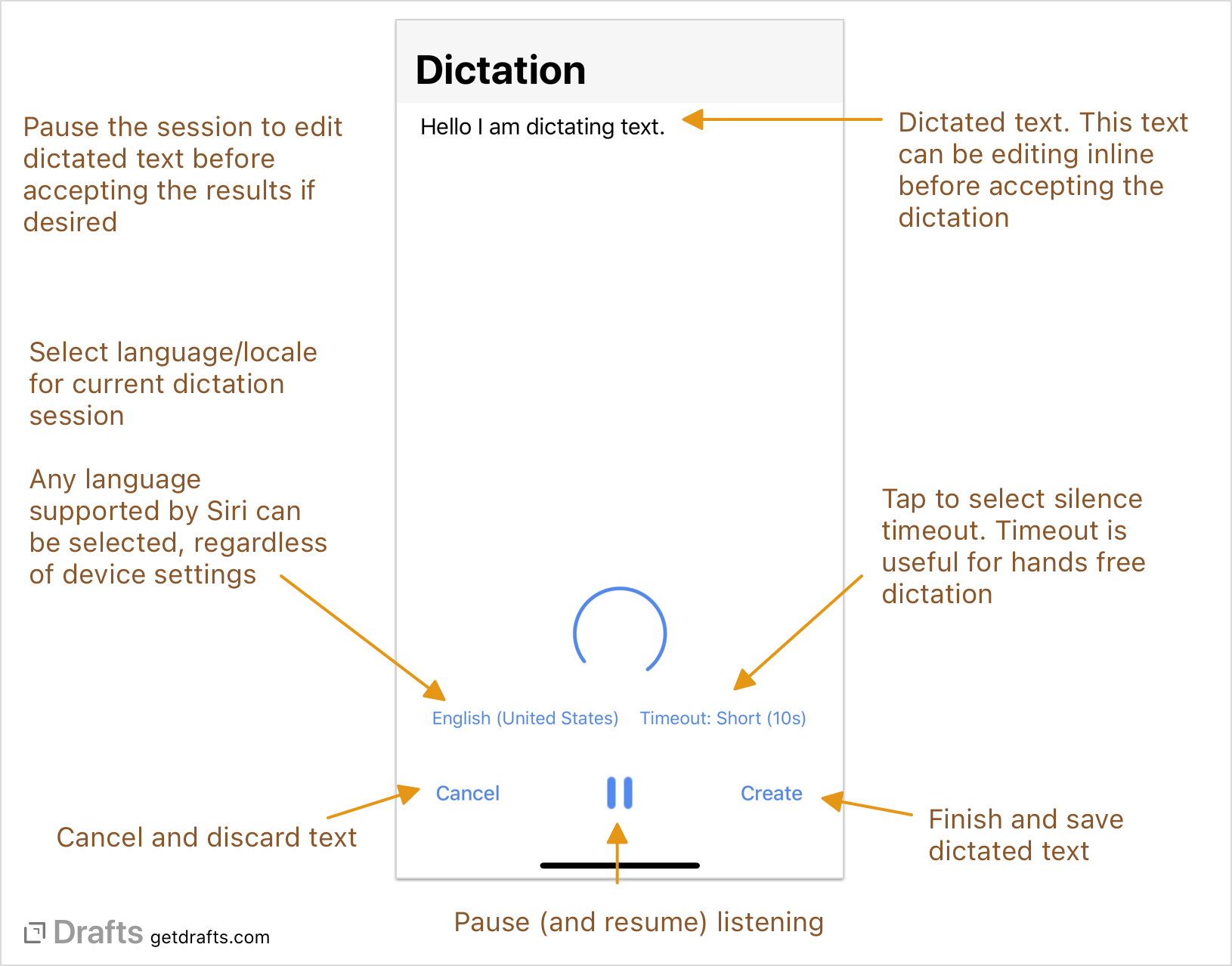
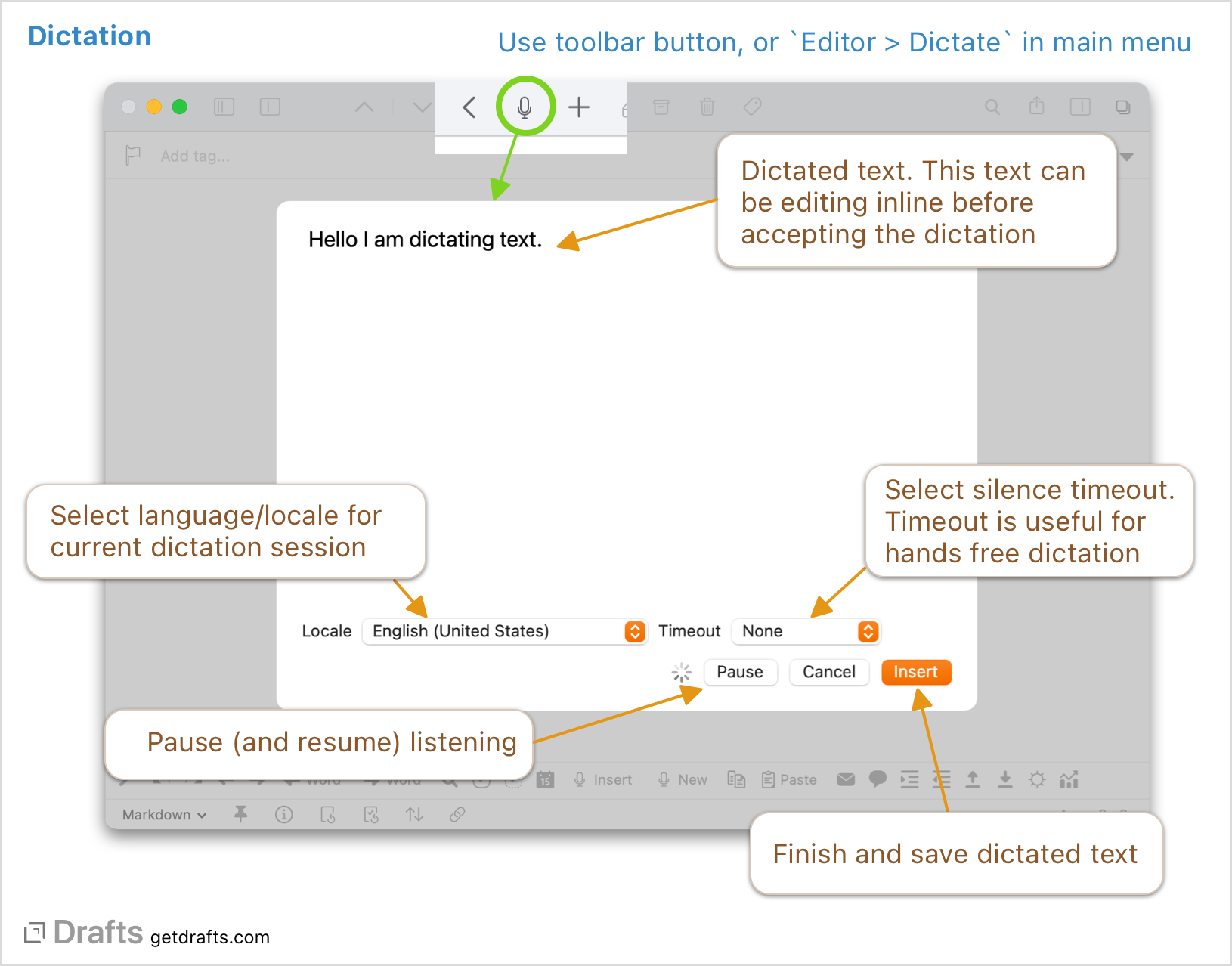
Once open, the dictation interface will immediately start listening. Just speak and a preview of the dictation results will be displayed at you speak. Once complete, tap the “Create” (or “Insert”) button to accept the results.
Dictation may be paused and resumed, and the text edited for minor corrections directly in the dictation interface.
The current selected locale/language is displayed above the pause button. Tap to select a different language. The dictation interface will remember the last used language the next time it is launched.
To learn about voice commands available to create new paragraphs, etc., any guide to Siri dictation commands is applicable.
Using Dictation as a Service
The dictation interface in Drafts can also be accessed via URL scheme, with full x-callback-url support, or be triggered via script using methods on the editor script object, or even be used in Shortcuts. This allows dictation to be incorporated into automation flows, or just be customized to launch in a particular language, etc. This is an advanced topic and if you have questions about how to incorporate dictation in automation, please ask on the community forums.
Troubleshooting Dictation
The availability of dictation is subject to the same limitations as standard system Siri dictation and may not be available at all times. Newer devices support offline dictation in some languages, but not all. Often a network is required to dictate. If you receive consistent errors accessing dictation, please confirm that you have granted Drafts access permissions to both Speech and to use the Microphone in iOS Settings > Privacy or System Settings.