
Chat Console PRO
Table of Contents
- What is the Chat Console?
- Chat Console Requirements
- Using the Chat Console
- Models
- Tools
- How to Use the Chat Console
- What Can it Do?
- Example Use Cases
- Using Models in Actions
What is the Chat Console?
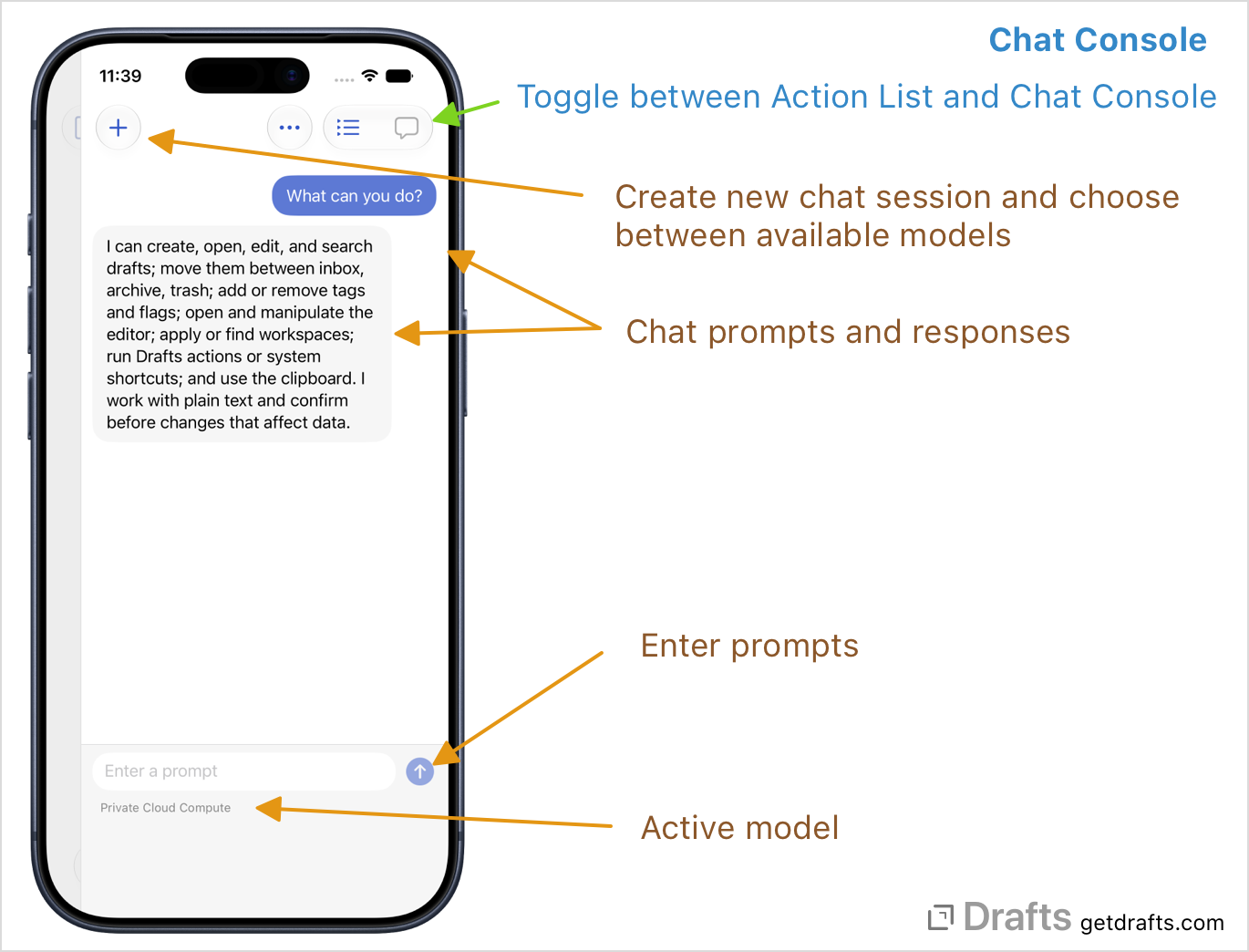
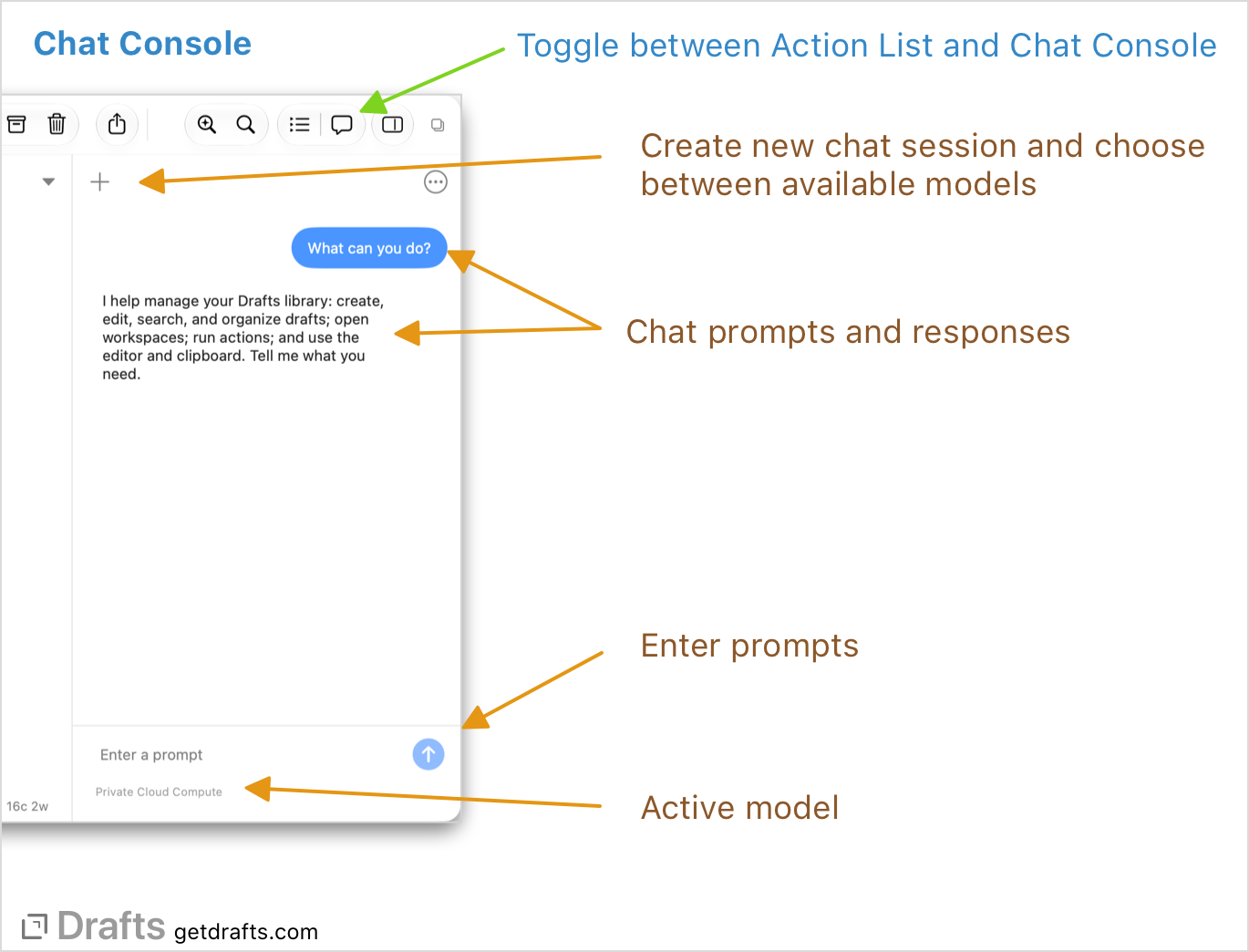
The console is a chat-style interface to use large language models (LLMs) to interact with Drafts. It is not a full-fledged chat client, but think of it as a quick way to do one-off interactions with your content. Each console session provides a temporary context for interacting with an LLM extended with tools to understand, work with, and modify your drafts.
Chat Console Requirements
Disabling Chat Console
Not a fan of AI, or don’t care to use the Chat Console? You can disable it with a toggle in the
...list options menu above the action list.
The Chat Console is available when you are running:
- Drafts 54 or greater
- Running iOS 27 or macOS 27 or greater
- On a device that supports and has enabled Apple Intelligence
- Active Drafts Pro subscription
Using the Chat Console
Each chat in the chat console is an individual chat session with a specific Large Language Model. Chats are transient. Drafts does not store a history of chat logs, and each time you start a new one, you start a new session with its own context and token limits.
Each model has its own capabilities and limitations. Understanding the best model to use for a chat makes a big difference to the quality of the output you will get, so take time to read the “Models” topic below. In addition to each of the model’s own knowledge and capabilities, Drafts provides access to a number of “tools” that allow the models to work with Drafts. Capabilities provided by tools include:
- Creating and updating drafts.
- Querying your drafts library. You can ask to find drafts by tags, flagged status, content, etc.
- Work with the editor, opening drafts, getting and changing text and selected text. It’s worth noting that most console operations that change the text directly in the editor support undo.
- Create, query, and update reminders in the Reminders app.
- Create, query, and update events in your system Calendars.
- Read and write files in iCloud Drive or your defined Bookmarks
- Get or set the system clipboard text.
- Run actions by name.
- Run shortcuts by name.
Models
The chat console supports several different LLMs. Each has its own set of abilities and limitations. Below is a summary to help you choose the best option for your needs.
On-Device
The on-device model is based on Apple’s SystemLanguageModel, which ships with the OS. The model is small and limited, but can still be useful for some scoped prompts.
- Recommended Use Cases
- Simple cases that do not require a lot of thought, like creating a draft from the clipboard.
- Summarize a draft’s content, suggest tags
- Pros
- Private: No data leaves your device when using this model
- Fast: Tends to be very responsive
- Works Offline: No network connection required
- Free and Unlimited: No API keys, no usage limits
- Broadly Available: Should be available on any device that supports OS 27 and Apple Intelligence
- Cons
- Limited Knowledge: This model is small and not very useful for general knowledge queries or multi-step prompts.
- Limited Context Size: A session with the on-device model is limited to 4k tokens. Complex or multi-step prompts will likely result in hitting that limit quickly.
Cloud
Uses Apple’s Private Cloud Compute model, which runs in the Cloud.
- Recommended Use Cases
- More advanced prompts that require working with multiple drafts or incorporating world knowledge
- Query and manipulate multiple drafts
- Create lists of related drafts
- Run actions across multiple drafts
- Use world knowledge as input for tasks like “Create a draft with a template for taking Meeting Notes”, “Create a draft with a list of the largest cities in the US”, etc.
- Pros
- Private(ish): Data does leave your device, but only to Apple’s Private Cloud Compute instances, which promise a high level of security and do not track and retain any data after completing requests. More details in Apple’s documentation
- Free (within limits): No accounts or API keys, but you can get rate-limited if you use this model a lot. You get a daily limit from Apple, which is higher if you also subscribe to some premium Apple services.
- More World Knowledge: This model is still not as extensive as frontier models from providers like Anthropic and Google, but has much more general knowledge, so it can be useful for tasks that utilize data from outside Drafts.
- Cons
- Limited Context Size: This model has a 32K token limit per session. Much more generous than the on-device model, but can still be a limiting factor in some cases.
- Limited Availability: Private Cloud Compute is not available worldwide.
Claude (Sonnet/Opus)
Utilize Anthropic’s Claude models. Currently, both Sonnet and Opus are supported. See Anthropic’s documentation for details on the differences between the models.
- Recommended Use Cases
- Advanced prompts that require working with multiple drafts or incorporating world knowledge
- Rewriting and proofing text
- Query and manipulate multiple drafts
- Create lists of related drafts
- Run actions across multiple drafts
- Use world knowledge as input for tasks like “Create a draft with an outline for a trip to Los Angeles”, “Create a draft with a list of the largest cities in the US”, etc.
- Pros
- Powerful: These options use some of the most advanced Claude models and all the power and capabilities they offer.
- Cons
- Not Free: Usage requires a Claude API Key, and usage will be counted against your Anthropic account and limits.
The first time you use one of the Claude Models, you will be prompted to enter an API key. You can generate API keys at the Claude Console.
OpenAI ChatGPT (Luna/Terra/Sol)
Utilize OpenAI’s ChatGPT models. Currently, Luna, Terra, and Sol are supported. See OpenAI’s documentation for details on the differences between the models. Generally, Luna is the fastest and simplest, Terra is more capable, and Sol is the most advanced.
- Recommended Use Cases
- Advanced prompts that require working with multiple drafts or incorporating world knowledge
- Rewriting and proofing text
- Query and manipulate multiple drafts
- Create lists of related drafts
- Run actions across multiple drafts
- Use world knowledge as input for tasks like “Create a draft with an outline for a trip to Los Angeles”, “Create a draft with a list of the largest cities in the US”, etc.
- Pros
- Powerful: These options use some of the most advanced Claude models and all the power and capabilities they offer.
- Cons
- Not Free: Usage requires a OpenAI API key, and usage will be counted against your OpenAI account and limits.
The first time you use one of the OpenAI Models, you will be prompted to enter an API key. You can generate API keys at the OpenAI Platform Console.
Tools
The Chat Console exposes functionality to the model through tool sets. With no tools enabled, you are talking to a plain LLM model that can’t do anything specific to Drafts. Enabling a tool set exposes additional capabilities to the model. By default, the Chat Console enables a set of tools to work with your drafts library and the editor, for example. You can optionally enable other sets to integrate with other system APIs and functionality.
In general, enable only the tool sets you plan to use, as including them adds token cost and may slow processing.
The tool sets currently available are:
- Drafts: Supports creating, updating, querying drafts in your drafts library, working with workspaces, running actions in Drafts, etc.
- Editor: Adds support for reading and updating text and text selections in the editor, opening drafts in the editor.
- History: Makes draft version histories and action logs available to query.
- Files: Supports reading, writing, and listing files from the Drafts iCloud Drive folder, or folder bookmarks you have defined.
- Reminders: Allows you to create reminders in Apple Reminders, query your reminder lists, etc. Useful if you wish to create draft content based on reminders, or create reminders based on content in Drafts.
- Calendars: Similar to Reminders, but for calendar events in Apple Calendars.
How to Use the Chat Console
What Can it Do?
Drafts makes a series of “Tools” available to each model that enable functions in the app. Core features that are available to the LLMs include:
- Create and update drafts
- Set the text, append, and prepend to drafts
- Assign or remove tags, set flagged status
- Query drafts
- Find drafts by tags, text searches, flagged status, etc.
- Open Workspaces
- Run Actions by name
- Run Shortcuts (with input) by name
- Work with the editor
- Open drafts
- Get and set selected text and selection ranges
- Get or set the system clipboard
These Drafts-specific capabilities can, of course, be combined with the capabilities of the model you are using. So, you can do things like ask it create a draft with a template for meeting notes, or clean/reorganize text in a draft…for example, sorting a list of grocery store items by areas of the store.
Example Use Cases
The chat console is open-ended, but here are a few ideas of the types of things it can be good at.
- Simple Prompts (Best with On-Device)
- “Create a draft with the content of the clipboard”
- “Suggest and assign tags for the current draft”
- Advanced Prompts (Best with PCC/Claude)
- “Find drafts assign the tag ‘project-a’ and run the “Save to Project Folder” action on each”
- “How many drafts did I create this week”
- “Create and open a new draft with a summary of the my flagged drafts”
- “Create a draft with a sample one-day trip itinerary for a visit to Seattle”
- “Reformat the selected text as a Markdown list, separating using commas”
- “Rewrite the selected text in a more formal tone”
Using Models in Actions
In addition to being available in the Chat Console, the same AI integration features can be used in scripted actions using the ModelSession object, which has the same tools and capabilities. A “Use Chat Console” Shortcuts action is also available to submit prompts to Drafts extended console. For more information and example actions, see the AI in Actions article.